Your microphone might echo due to feedback loops caused by speaker proximity, high volume, or poor acoustic treatment, which leads to the frustrating issue of why does my microphone echo? This echo can also stem from high microphone sensitivity, multiple audio devices, or incorrect software settings. Additionally, faulty equipment connections and outdated drivers contribute to this common problem. To address the question of why does my microphone echo, consider adjusting your setup and environment. By understanding the underlying causes of microphone echo, you can find effective solutions that lead to clearer audio and a better experience in your podcasting, streaming, or gaming endeavors.
Key Takeaways
- Microphone echo often occurs due to feedback loops from speakers, especially if they are too close to the mic or set at high volume.
- Poor microphone quality and sensitivity can capture excess background noise, contributing to echo issues during audio capture.
- Software settings, like enabling “Listen to this Device,” can cause delayed audio to re-enter the microphone, creating unwanted echo.
- Improper room acoustics, such as hard surfaces and lack of sound absorption materials, can exacerbate echo problems.
- Using headphones instead of speakers can effectively eliminate feedback loops and significantly reduce microphone echo.
Identifying Causes of Microphone Echo for Effective Solutions
Why does your microphone echo? Identifying the causes of microphone echo is essential for effective solutions.
This issue often arises from feedback loops created when your microphone picks up sound from nearby speakers. If your speaker volume is too high or they’re positioned too close to your mic, you amplify this loop, leading to echo in your calls. Additionally, acoustic feedback can occur when the mic and speakers are improperly positioned, further compounding the issue. Proper background noise management is vital to minimize these feedback loops.
Additionally, high microphone sensitivity or poor device positioning can exacerbate the problem. Omnidirectional microphones capture more background noise, while improper angles can favor unwanted reflections. Proper microphone and speaker selection is crucial in preventing echo.
If you’re using multiple devices in one space, they can interfere, causing overlapping audio paths.
How to Adjust Room Acoustics to Reduce Echo
To effectively reduce echo in your recordings, adjusting room acoustics to reduce echo is essential.
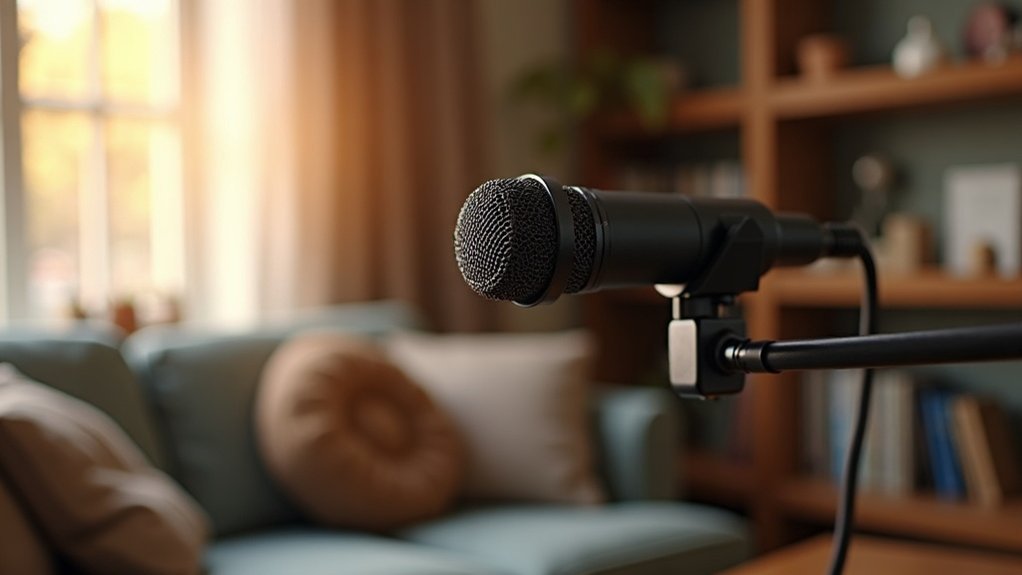
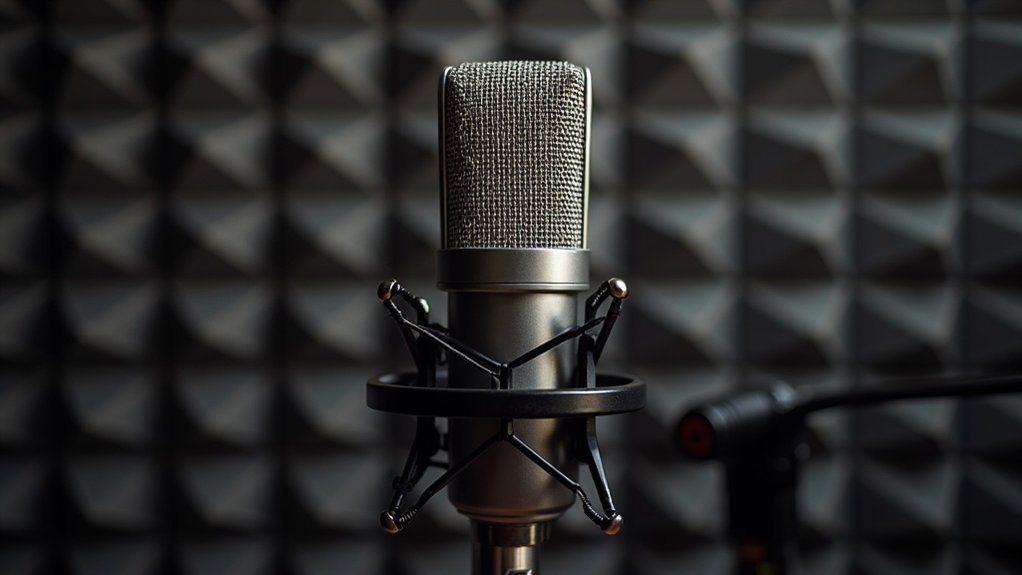
Start by implementing acoustic treatments, covering 25–40% of wall and ceiling surfaces with high-NRC materials. Acoustic panels are designed to absorb sound waves and can significantly improve the overall sound quality. Focus on sound absorption by strategically placing furniture to break up reflective surfaces; soft furnishings like couches and rugs greatly enhance absorption. Additionally, hard surfaces in the room can significantly contribute to echo issues, so consider minimizing their presence. Incorporating bass traps can also effectively target low-frequency energy that often exacerbates echo.
Implement acoustic treatments by covering 25–40% of walls and ceilings with high-NRC materials and using soft furnishings to enhance sound absorption.
Consider the room layout, avoiding parallel walls that can amplify echoes. Install acoustic panels at first reflection points and use ceiling clouds to mitigate vertical reflections.
Additionally, arrange bookshelves with unevenly placed books to diffuse sound energy.
Choosing the Right Hardware to Minimize Echo
Choosing the right hardware to minimize echo can significantly enhance the quality of your recordings. When selecting your equipment, dynamic microphones, particularly cardioid models, are excellent choices as they reduce sensitivity to ambient noise, effectively helping to minimize echo. While condenser mics excel at capturing intricate details, they can inadvertently amplify echo in reflective environments, making them less ideal for untreated spaces. Additionally, using plugins like Goyo can further improve audio quality by eliminating ambient noise and enhancing vocal clarity. This is especially important since supercardioid and hypercardioid microphones offer tighter pickup patterns that can further reduce echo in challenging acoustic environments.
To achieve optimal results, consider hardware solutions that include proper mic placement and acoustic treatment.
Here are some key considerations when determining your setup:
| Microphone Type | Ideal Usage |
|---|---|
| Dynamic (Cardioid) | General recording |
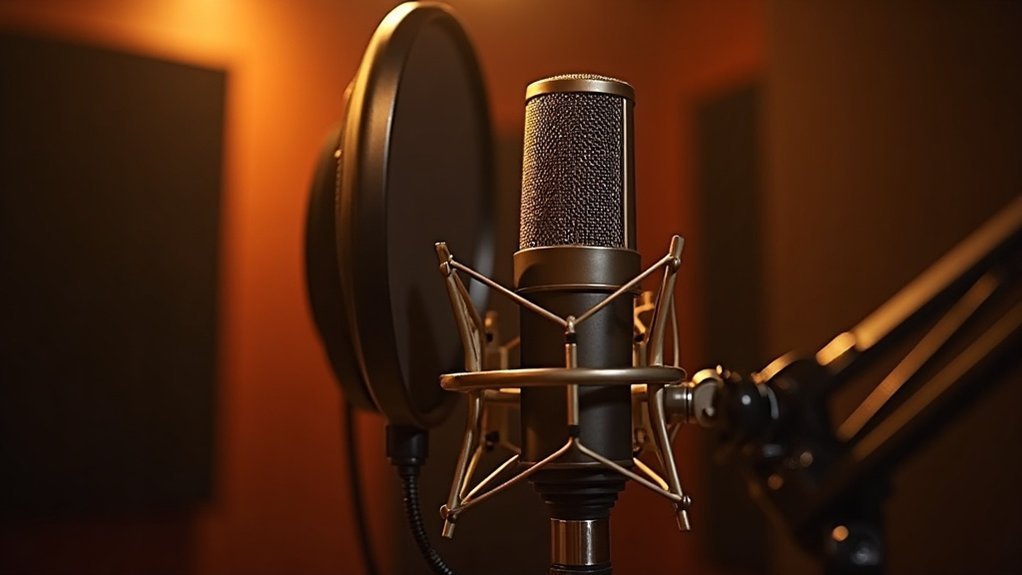
| Condenser | Treated studio environments |
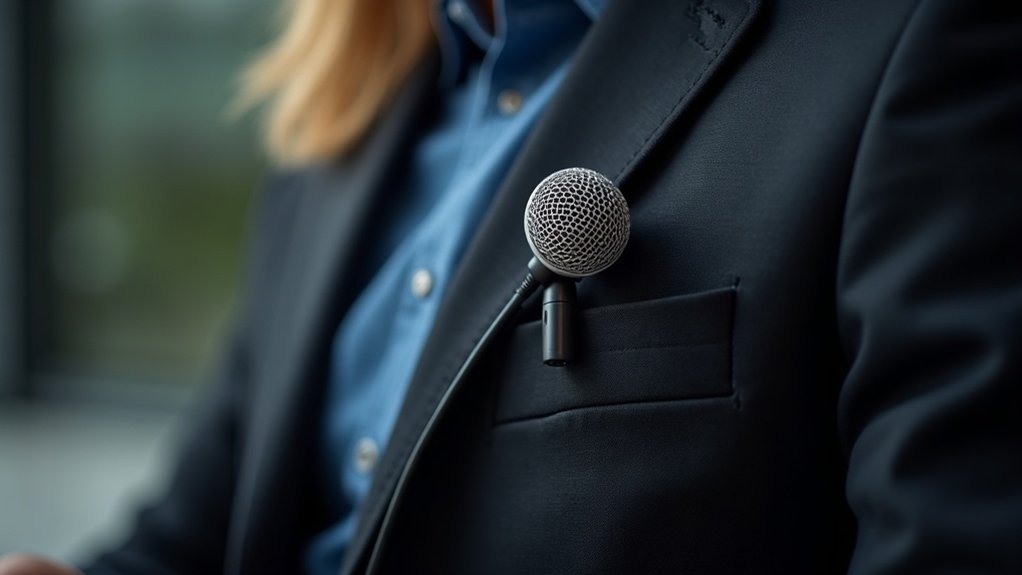
| Lavalier | Close, personal audio |
| Shotgun | Distance-focused pickup |
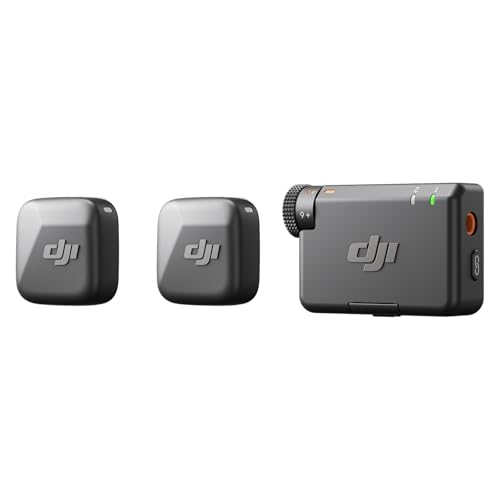
| Conferencing | Echo cancellation support |
Prioritizing low self-noise along with features like built-in echo cancellation will ensure maximum clarity in your recordings. By carefully selecting the right hardware to minimize echo, you can create a more professional sound environment, whether you’re podcasting, streaming, or recording music.
How Software Settings Cause Echo?

While you might assume that hardware is the primary culprit behind microphone echo, it’s important to recognize how software settings cause echo as well. Improper audio routing, such as enabling “Listen to this device,” can create feedback loops, allowing delayed audio to re-enter the mic. This issue is often exacerbated by multiple active input paths, including virtual devices or app loopback, which lead to duplicated audio capture. Misconfigured monitoring options in applications like Discord or Zoom can further contribute to this phenomenon. Notably, the echo problem may only arise in specific applications, such as Discord and Zoom, highlighting the role of software in audio issues. Additionally, mic echo can disrupt recordings and conversations, underscoring the need for clear communication.
To mitigate how software settings cause echo, enabling echo cancellation and noise suppression features is essential. Implementing a noise gate can also help prevent unwanted sounds from interfering with your audio. However, be cautious—certain audio enhancements might introduce unwanted reflections, amplifying the echo effect in your recordings or calls.
Understanding the interplay between software configurations and microphone performance is crucial for creators, gamers, and musicians aiming for clear audio quality.
How to Prevent Microphone Echo Effectively
Echo from your microphone can be frustrating, but you can take several effective steps to prevent microphone echo effectively. Start by using headphones to break the feedback loop, ensuring speakers are muted or at a low volume. Position your microphone 4 to 6 inches from your mouth and away from reflective surfaces. Additionally, be mindful of poor acoustics, as hard surfaces can reflect sound back to the mic, leading to background noise that complicates recordings.
Incorporate soft furnishings for acoustic absorption and consider acoustic panels to reduce reverberation, which can also help in preventing microphone echo. Furthermore, optimizing your setup with echo cancellation features can further enhance audio clarity.
Keep only one microphone active and use echo cancellation features when available. Regularly check your audio drivers and lower your microphone gain to minimize ambient noise pickup. These adjustments can greatly enhance your audio clarity and effectively prevent echo from your microphone, ensuring a better experience for creators, gamers, musicians, and professionals alike.