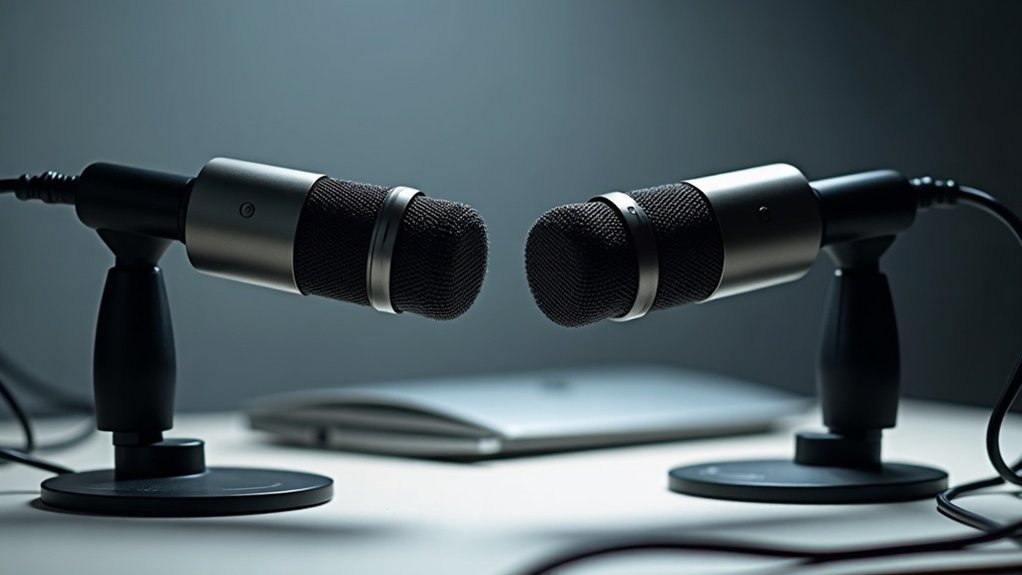
Yes, you can use two USB microphones at once**, making this setup increasingly popular among content creators and professionals. To successfully use two USB microphones simultaneously, you’ll need platform-specific configuration. On Mac, create an Aggregate Device through Audio MIDI Setup to combine them into a virtual interface. Windows users should employ Voicemeeter or ASIO4ALL** for multi-mic routing.
For streamers and podcasters looking to use two USB microphones at once, you’ll also need recording software supporting multiple inputs—OBS Studio and Adobe Audition work well for gaming streams and podcast production. This using two USB microphones approach allows creators to isolate different audio sources, such as separating guest audio from host audio in interviews or capturing multiple instruments in music recording.
However, USB setups have inherent limitations with driver conflicts and synchronization issues when attempting to use two USB microphones at once. Musicians and professionals serious about dual-mic recording should understand these constraints before investing in budget-friendly USB microphone pairs. There’s a more robust solution worth exploring if you’re committed to affordable, reliable two USB microphones configurations for your streaming, gaming, or recording setup.
Key Takeaways
- Yes, two USB microphones can work simultaneously on Mac using Aggregate Devices in Audio MIDI Setup for synchronized multi-input recording.
- Windows users can enable dual USB mics through Voicemeeter virtual mixer or ASIO4ALL, routing each microphone to separate hardware input strips.
- Recording software like OBS Studio and Adobe Audition support true multi-track capture from multiple USB microphones with separate track assignment.
- USB microphones face limitations including driver conflicts, synchronization issues, and resource constraints that require workarounds for reliable dual-mic setups.
- External audio interfaces with XLR microphones offer superior stability, eliminate USB conflicts, and provide professional-grade multi-track recording without software complications.
Yes: Two USB Microphones Can Work Together (Here’s How)
Two USB microphones can absolutely work together on a Mac—you’ll just need to combine them into a single Aggregate Device using Audio MIDI Setup. This method proves that two USB microphones can work together seamlessly, suiting various microphone types while preserving recording quality by maintaining separate channels.
Plug both mics in first, then create your aggregate device through Applications > Utilities. You can access Audio MIDI Setup quickly using Spotlight search to streamline the device creation process. Most microphones draw power directly through the USB connection, so using a powered USB hub ensures stable connectivity when connecting multiple devices simultaneously.
Software compatibility matters significantly when running two USB microphones together: Logic Pro, Reaper, and Adobe Audition support multi-input workflows effectively for podcasters, streamers, and musicians. Understanding what a USB audio interface is helps clarify how these devices manage multiple audio inputs within your setup.
Learning how two USB microphones can work together opens possibilities for dual-mic setups that enhance production value across streaming, gaming, and professional recording scenarios.
Dual-mic setups enhance production value across streaming, gaming, and professional recording scenarios.
For best results when implementing two USB microphones working together, configure gain settings individually, verify audio sync through test recordings, and apply troubleshooting tips like checking channel assignments.
Proper mic placement and device naming streamline your setup, ensuring reliable user experiences across sessions.
Whether you’re a content creator exploring affordable microphone solutions or a professional seeking redundancy, understanding that two USB microphones can work together expands your recording capabilities without requiring expensive professional audio interfaces.
Create an Aggregate Device on Mac (Audio MIDI Setup)
You’ll open Audio MIDI Setup from Finder > Go > Utilities to access the system tool that lets you combine multiple audio devices.
Once launched, you’ll locate the Add (+) button in the sidebar of the Audio Devices window, which is your entry point for creating an aggregate device.
From there, you’ll select and combine your USB microphones into a single virtual audio interface that your Mac can recognize as one unified input source. Ensure all selected devices have the same sample rate to maintain compatibility and prevent audio issues. After creating your aggregate device, you can rename it by double-clicking to give it a more descriptive name that identifies your specific setup.
Opening Audio MIDI Setup
Before you can combine multiple USB microphones into a single input source, opening Audio MIDI Setup****—macOS’s built-in utility for aggregating audio devices—must be completed.
You’ll find it by exploring through Finder‘s Go menu to the Utilities folder. This streamlined approach guarantees proper device compatibility and audio settings configuration before creation begins.
To access the application efficiently:
- Click Finder in your dock
- Select Go from the menu bar
- Choose Utilities from the dropdown
- Locate and open Audio MIDI Setup
Opening Audio MIDI Setup is essential for creators, gamers, musicians, and professionals looking to optimize their affordable microphone setup for podcasting, streaming, gaming, and recording.
Once you’ve completed opening Audio MIDI Setup, you’re ready to proceed with creating your aggregate device. Within Audio MIDI Setup, you’ll find the Add (+) button in the Audio Devices sidebar that enables you to create and manage your aggregated device configuration. From the Window menu, you can select Show MIDI Studio to access additional configuration options for your devices.
Confirm all external USB microphones are connected to your Mac beforehand for seamless integration, ensuring your multi-microphone configuration works flawlessly for your content creation needs.
Selecting And Combining Microphones
Enable both USB microphones using the Use checkbox, verifying microphone compatibility with your setup.
The process of selecting and combining multiple mics requires careful attention to synchronization. Select one device as the clock source to maintain audio synchronization across channels. The other mic can use drift correction if needed.
This unified input source is now ready for your recording software, eliminating the hassle of switching between individual devices. An audio interface can provide similar functionality for analog microphones, but USB microphones offer a more direct connection to your computer.
By properly selecting and combining microphones this way, creators, gamers, musicians, and professionals can streamline their setup for podcasting, streaming, gaming, and recording without purchasing expensive audio interfaces.
This microphone selection and combination technique ensures that your microphone pairing works seamlessly, allowing you to leverage the strengths of multiple affordable microphones simultaneously rather than relying on a single device for all your audio capture needs.
Configure Windows With Voicemeeter or ASIO4ALL
Two primary approaches exist for routing multiple USB microphones on Windows: configuring Windows with Voicemeeter or ASIO4ALL.
Configuring Windows with Voicemeeter assigns each microphone to separate Hardware Input strips, then routes outputs via B buttons to your virtual device.
You’ll configure Windows Sound settings to recognize Voicemeeter as your default input and output. This approach works well for streamers and podcasters who need flexible mic routing without dedicated audio interfaces. VoiceMeeter functions as a virtual mixer that simulates a physical mixer, allowing you to blend audio from multiple sources seamlessly. Voicemeeter’s ability to manage multiple USB devices simultaneously makes it particularly valuable for users requiring complex audio setups. Unlike XLR microphones, USB microphones connect directly to your computer and are ideal for setups where simplicity and plug-and-play functionality are priorities.
ASIO4ALL configuration serves recording software requiring ASIO device support:
- Map USB microphones to left and right channels in Audio Channel Mapping
- Select ASIO4ALL v2 as your device class
- Arm separate tracks for multitrack recording
When configuring Windows with either solution, both methods require matching sample rates across devices to prevent audio artifacts.
Musicians and gamers recording multiple mics simultaneously benefit from understanding how to properly configure Windows audio routing through these tools.
Select whichever method aligns with your workflow’s technical requirements—Voicemeeter offers more intuitive routing for content creators, while ASIO4ALL provides superior integration for professional DAW recording setups.
Select Recording Software That Supports Multiple USB Mics
After you’ve configured your Windows audio routing through Voicemeeter or ASIO4ALL, you’ll need recording software that can capture multiple USB microphones simultaneously as independent tracks. Your recording compatibility depends on software supporting true multi-track capture rather than mixing inputs together.
| Software | Track Isolation |
|---|---|
| OBS Studio | Yes |
| Adobe Audition | Yes |
| Coherence Audio | Yes |
| Audacity | No |
When selecting recording software that supports multiple USB mics, OBS Studio and Adobe Audition offer robust setup guides for assigning multiple microphones to separate channels, ensuring audio quality remains pristine. This capability is essential for podcasters, streamers, and musicians who need recording software supporting multiple USB microphones without compromising audio fidelity. Unlike condenser microphones that typically require phantom power, USB microphones draw power directly from your computer’s USB ports, simplifying your multi-mic setup.
Coherence Audio excels on Windows specifically and provides streamlined workflows for those seeking software that supports multiple USB mics on that platform. The Pro Edition corrects hardware clock drift to ensure your independently recording USB microphones stay perfectly synchronized. Each solution delivers different user experiences—OBS Studio caters to gamers and streamers requiring multi-USB mic recording software, while Adobe Audition serves professionals and musicians needing advanced editing alongside multiple USB microphone support in recording software.
For creators building affordable podcast or streaming setups, choosing recording software that supports multiple USB mics depends on your operating system compatibility and whether you prioritize simplicity or advanced features in your workflow. Ensure your selected platform delivers the track isolation necessary for professional multi-mic recordings.
Separate Tracks vs. Mixed Audio: What’s the Difference?
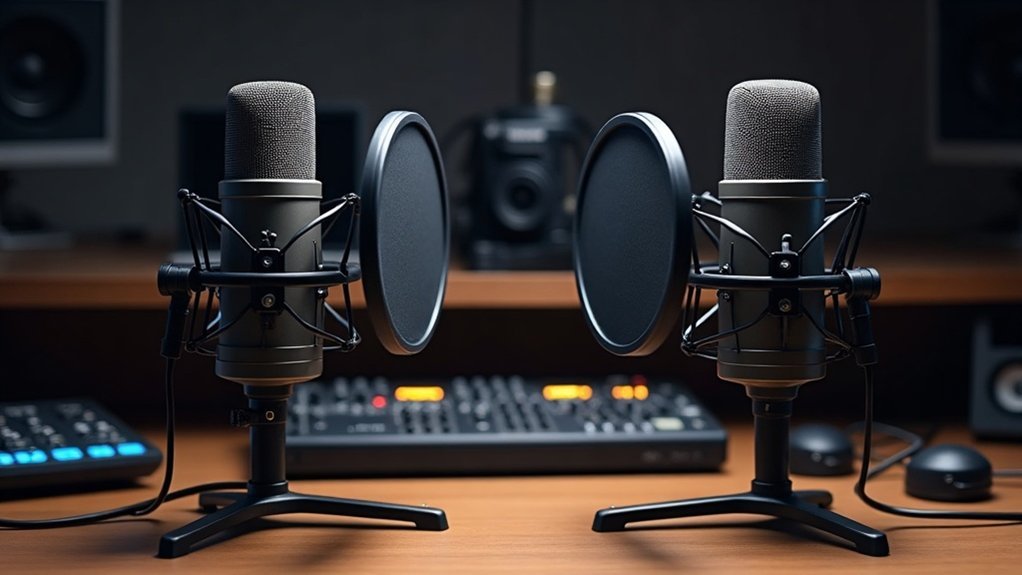
Consider these recording techniques that leverage separate tracks:
- Per-speaker processing: Apply EQ, compression, and reverb independently to each voice without affecting the other microphone’s output. Proper microphone gain adjustment ensures each input level is optimized before any processing is applied.
- Post-recording rebalancing: Adjust levels without rebuilding entire files or re-recording sessions.
- Isolated cleanup: Remove background noise from specific sources, leaving other speakers untouched.
The choice between separate tracks vs. mixed audio** directly impacts your editing capabilities. Creators, gamers, and podcasters who need maximum control** over their content should lean toward separate tracks.
Musicians recording duets or collaborative sessions benefit from the flexibility this method provides. Streamers and professionals on tight deadlines might prioritize mixed audio for faster turnaround.
Your mixing preferences and production choices should align with whether you prioritize editorial control or immediate delivery speed. For most serious creators, understanding how to work with separate tracks versus mixed audio separates amateur setups from professional productions.
Diagnose Dual USB Mic Problems: Port, Power, and Drivers
Because USB microphone detection failures often stem from preventable hardware and software issues, you’ll want to systematically work through port connectivity, power stability, and driver status before concluding that either microphone is defective.
Diagnosing dual USB mic problems requires methodical troubleshooting across three critical areas: port configuration, power delivery, and driver integrity.
Start by testing each microphone on separate ports to eliminate dual conflicts. Check Windows Device Manager for driver warnings and run driver updates if needed. Verify system recognition in sound settings and confirm app permissions aren’t blocking access. While USB microphones use digital connections, understanding balanced vs. unbalanced audio connections can help you appreciate why proper port configuration matters for signal integrity.
When troubleshooting dual USB mic setup issues, isolate whether the failure is device-specific or caused by the dual-mic configuration itself.
Test each mic independently to determine if you’re experiencing dual USB mic port conflicts or broader driver problems. Restart your computer to restore power initialization and proper enumeration.
If problems persist after addressing port and power concerns, focus on resolving driver issues—the most common culprit in dual microphone detection failures.
For content creators, gamers, and podcasters relying on multiple mics for streaming or recording, understanding how to diagnose dual USB mic problems with port, power, and driver solutions ensures minimal downtime.
Keep detailed notes on which ports, power configurations, and driver versions work best for your specific setup, and you’ll build a reliable multi-mic foundation for professional-quality audio capture.
Where Dual USB Mics Shine: Podcasting, Interviews, and Streaming
Each application benefits distinctly:
- Podcast formats gain dialogue isolation and independent voice editing through dedicated tracks. Dual USB mics shine in podcasting by allowing hosts and guests to occupy separate channels, making post-production seamless and professional.
- Interview techniques capture clearer speech when speakers overlap, enabling granular post-production adjustments. Where dual USB mics shine during interviews is in their ability to record each participant independently, eliminating the need for compromise on a single input.
- Streaming setups leverage OBS workflows for balanced, real-time speaker management and audience clarity. Dual USB microphone configurations excel in streaming environments, giving you granular control over each speaker’s levels and tone.
You’ll achieve superior sound clarity, streamlined level matching, and professional-grade noise cleanup. Separate microphones eliminate the compromise of capturing multiple voices on a single input, positioning you within communities demanding production excellence. When selecting equipment, understanding which microphone type works best for your specific use case ensures you invest in tools suited to your format.
Whether you’re running dual USB mics for podcasting, leveraging them for streaming interviews, or managing complex multi-speaker recordings, this setup represents the standard for creators serious about audio quality without premium price tags.
Upgrade to an External Audio Interface (When Two USB Mics Aren’t Enough)
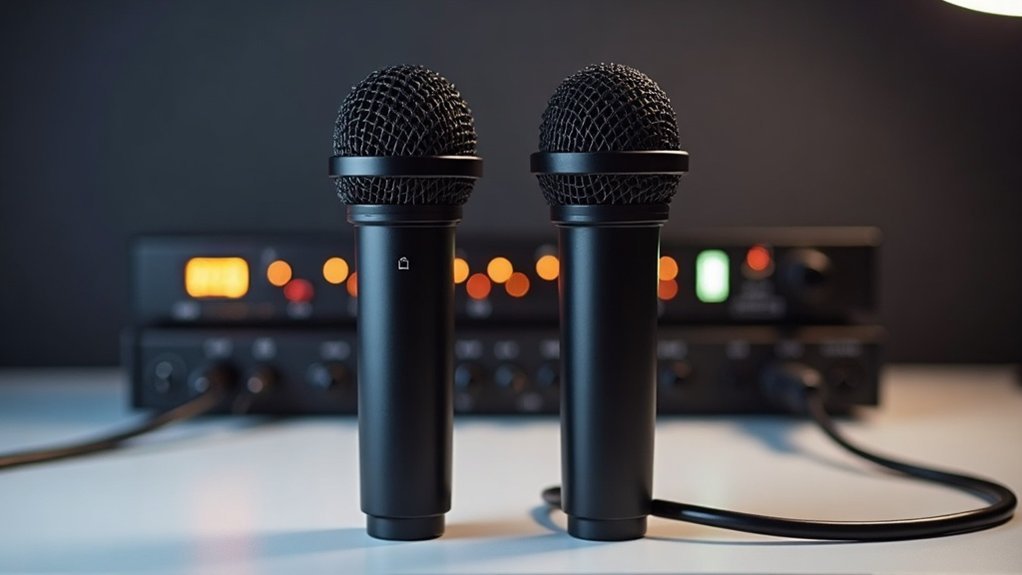
When you’re ready to move beyond USB mic limitations, you’ll find that XLR microphones paired with a dedicated audio interface offer superior stability and flexibility for simultaneous dual-source recording.
An interface converts mic signals into computer-readable audio while providing dual XLR inputs, phantom power for condensers, and independent channel routing—eliminating the driver conflicts and synchronization issues that plague two separate USB devices. Audio interfaces work by translating analog signals from your microphones into digital data that your computer can process and record.
This setup gives you direct control over gain staging, monitoring, and track isolation, making it the standard professional approach for reliable multitrack workflows.
XLR Microphones and Interfaces
If you’ve outgrown two USB microphones, you’ll need to step up to XLR microphones and interfaces with an external audio interface. XLR microphones offer balanced signal paths that reduce noise, cable durability for professional environments, and modular design flexibility.
Your XLR interface becomes the hub, handling analog-to-digital conversion and gain control independently per channel.
Key priorities for multi-input setups:
- Sufficient XLR inputs matching your microphone count
- 48V phantom power for condenser microphones
- Clear gain knobs and level meters
XLR interface compatibility guarantees seamless expansion. This modular approach lets you upgrade components independently, transforming your setup into professional-grade equipment.
Whether you’re upgrading from budget USB options to dedicated XLR microphones and interfaces, this investment delivers professional-grade equipment capable of capturing multiple sources simultaneously without compromise.
Creators and musicians benefit from the flexibility that XLR microphones provide, allowing you to scale your recording setup as your needs grow.
When USB Mics Fall Short
Two USB microphones hit a fundamental limitation: most recording software recognizes only one USB audio device at a time, which blocks straightforward dual-mic capture on a single computer. This is precisely where USB mics fall short for creators and professionals managing multi-track projects.
You’ll encounter software conflicts and driver incompatibilities that degrade your user experience. While workarounds like virtual-audio routing exist, they’re unstable and complex—a frustrating reality that reveals the core weaknesses of USB mics when scaling your setup. USB microphones typically connect directly to your computer’s USB port, meaning multiple USB connections can create resource conflicts that further complicate multi-device recording.
Understanding when USB mics fall short becomes critical for podcasters, streamers, and musicians investing in their gear. Whether you’re recording interviews, layering voiceovers, or capturing multiple sources simultaneously, relying on consumer USB microphones creates bottlenecks that compromise your workflow.
The moments USB mics fall short often come during crucial recording sessions when you need reliability most.
For reliable multi-track recording—for podcasting, interviews, or professional voiceover work—an external audio interface becomes essential. It eliminates USB mic limitations through dedicated hardware routing, superior audio quality, and predictable channel assignment.
You’ll gain the control and stability that software aggregation simply can’t deliver, transforming your setup from hobbyist constraints into professional-grade capability that grows with your needs as a content creator.